

Analysis Workspaces
An Analysis Workspace is the server version of Spatial Data Studio. It offers every squidpy and scanpy function through point-and-click forms, curated recipes of several steps, and the memory of a whole machine for sections too big for a browser. In Cirro it runs as a workspace in your project, with the datasets you choose attached; on your own computer it runs with Docker (Run it with Docker). Either way you use it in your browser, and it looks like this:
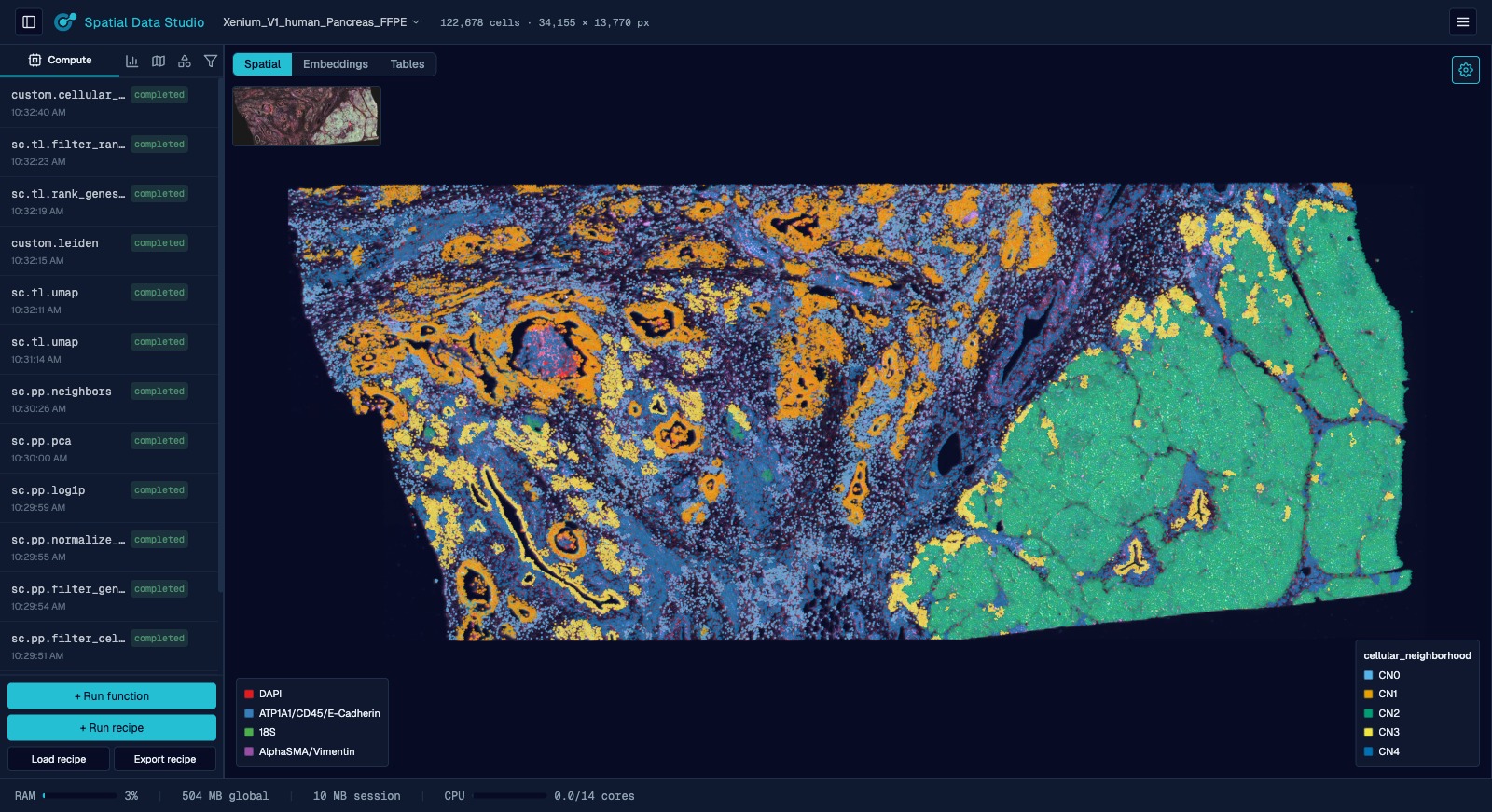
A whole Xenium ovarian-cancer section (~400,000 cells), colored by cellular neighborhood.
Start one from the web app
Open in an Analysis Workspace, at the top of any item in the web app, starts one with that item attached. Workspaces, in the top bar, lists the Analysis Workspaces you have in the project and starts one with several items at once. You can also create one on Cirro's own Workspaces page, from the Spatial Data Studio environment.
The datasets are attached in place, read-only: nothing is downloaded and nothing is copied back, and the machine doing the analysis is the workspace's rather than yours, so a section too big for a laptop only needs a bigger machine.
- What it opens. + Add from this project adds spatial datasets, runs and images. A saved version brings the store and every version beneath it, so the workspace opens it with all the changes you saved. Changes you haven't saved as a version stay in your browser, and the form says so.
- The machine. Standard is Cirro's default for an Analysis Workspace; Large and Extra large double and quadruple its CPU and memory, for sections too big for the default. It is billed to the project while it runs.
- Starting. A workspace takes a few minutes to start. Keep working meanwhile: the top bar shows it starting, and a notice with Open appears when it's ready. It opens in a new tab, with the items you attached under
datasets/in its data folder: saved versions and checkpoints in its Open Checkpoint list, other stores and instrument runs through Import Data. - Running. It stops by itself after two hours unless you Extend it, and leaving the web app doesn't stop it. Stop keeps its files, and Start runs it again. Change datasets gives a stopped workspace different items or a different machine; it restarts with its files kept. Delete removes it, with any files in it that weren't saved to the project.
- The limit. Cirro limits how many workspaces you may have in a project, stopped ones included. At the limit, the form lists yours so you can delete one to make room.
- Results. What you save in an Analysis Workspace stays in it until you publish it to Cirro; it then appears on the web app's map.
Analysis Workspaces need your organization's Cirro to offer the Spatial Data Studio workspace environment; where it doesn't, the Workspaces sheet says so. Public Data doesn't offer them.
Work in it together
An Analysis Workspace is one running app, and more than one person can be in it at once. The web app starts it as yours alone. To let colleagues in, share it from Cirro's own page for the workspace: shared Read-Write, anyone on the project can connect to it (Cirro's Sharing a workspace has the options).
Whoever opens a session holds its edit lock; everyone else can watch, and each analysis the lock-holder runs appears on their screens as it finishes rather than on a reload. What you are looking at stays yours: color by a different gene, change the channels, zoom somewhere else, while someone else drives the analysis, and the padlock hands the lock over when you want a turn. Sessions are independent of each other, so two people working on different datasets in the same workspace do not collide; how many can be open at once is a setting of the deployment (docker/README.md).
The padlock
Opening a session locks it to you, so a second person who connects can look but not change anything. A padlock next to the session name shows whether the session is locked to you, locked to someone else, or unlocked, and lists everyone currently viewing; the session list shows who holds each session's lock and how many people are on it. You appear under a two-word name like gloomy socrates. Click the padlock to rename yourself, unlock the session so a colleague can take over, or take an unlocked session's lock. While someone else holds the lock you can still explore freely and change any display setting (color by, channels, zoom, render mode); those changes stay on your screen instead of going into the session.
Find your way around
The left panel organizes a session into Compute, Plots, Regions, Annotations, and Subset tabs; the canvas fills the rest of the window, with the display settings in the right-hand sidebar.
Load your data
Point the app at a raw acquisition folder (a spatialdata-io reader parses it) or open an existing SpatialData .zarr store. Each reader input is its own field: a folder or file input opens a filesystem picker, and the reader's options (e.g. whether Xenium reads transcripts, cell boundaries, or the morphology image) are toggles/values — so you tailor exactly what gets loaded. Large datasets can take a while to read, so the reader's log streams live while it works. Datasets stay resident in memory for the session. Opening a .zarr store (or .zarr.zip / .zarr.tar.gz archive) that this app previously saved also carries the store's recorded compute history into the new session, so the functions that produced the data stay visible in the Compute tab.
A version saved in the web app opens the same way. In a workspace started on it, its folder is in the Open Checkpoint list under datasets/ (with the version's title when that differs), and the Analysis Workspace assembles it with the store and every version beneath it. Saving writes a new checkpoint; the version itself is never changed. If a dataset the version was saved over isn't attached to the workspace, it doesn't open, and the message names that dataset.
Run analyses without writing code
Every squidpy and (curated) scanpy function appears in a searchable picker with a form generated from the function's own signature — QC, normalization, clustering, neighborhood enrichment, spatially variable genes, co-occurrence, ligand-receptor, and more. Each carries a citation and a link to its documentation. Data-transforming functions run from the Compute tab; plotting functions render static figures collected in a separate Plots tab.
Apply curated recipes
Multi-step workflows (preprocess → cluster → annotate → neighborhood analysis) you can run in one click or stage and edit step by step.
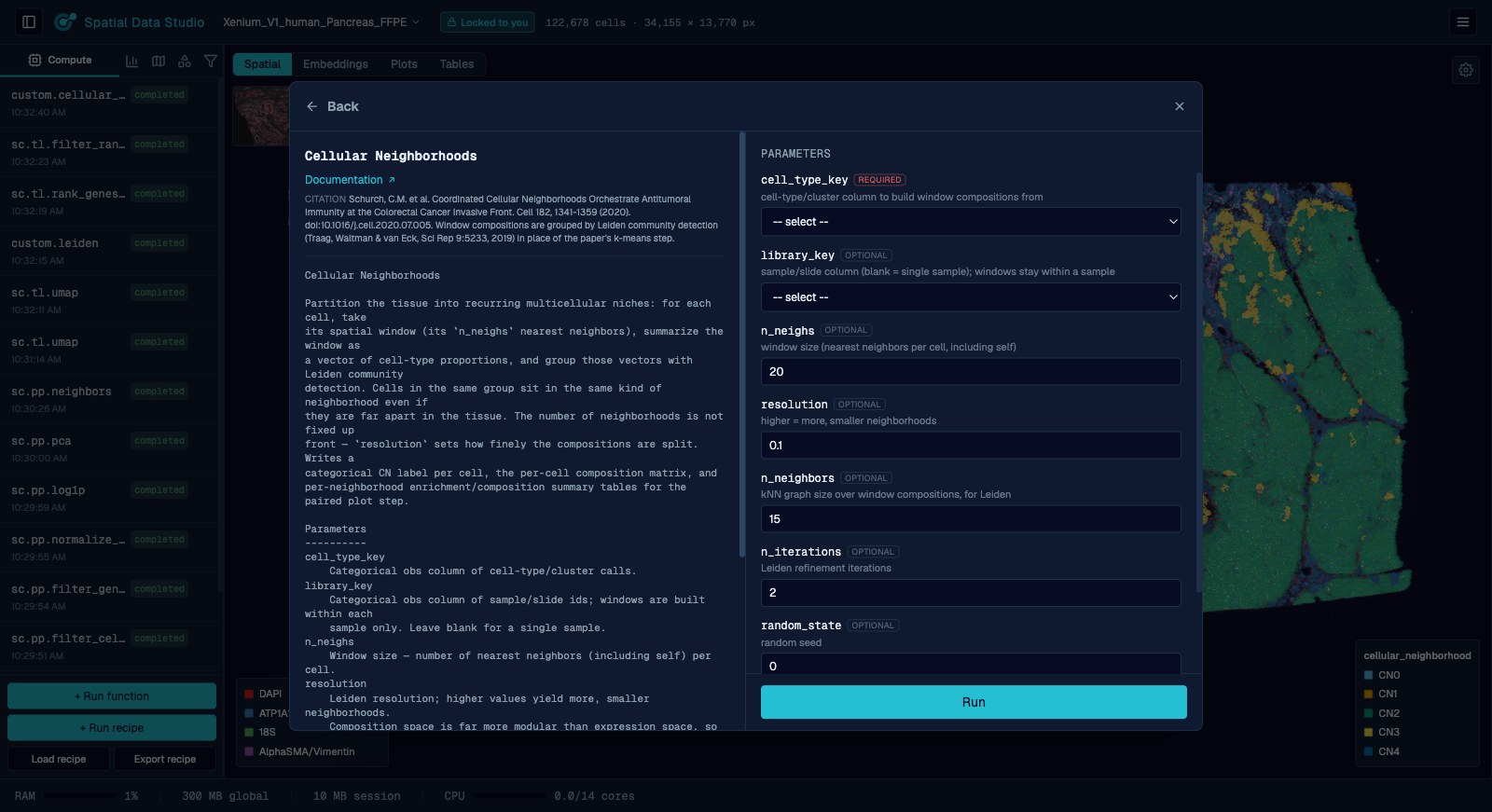 | 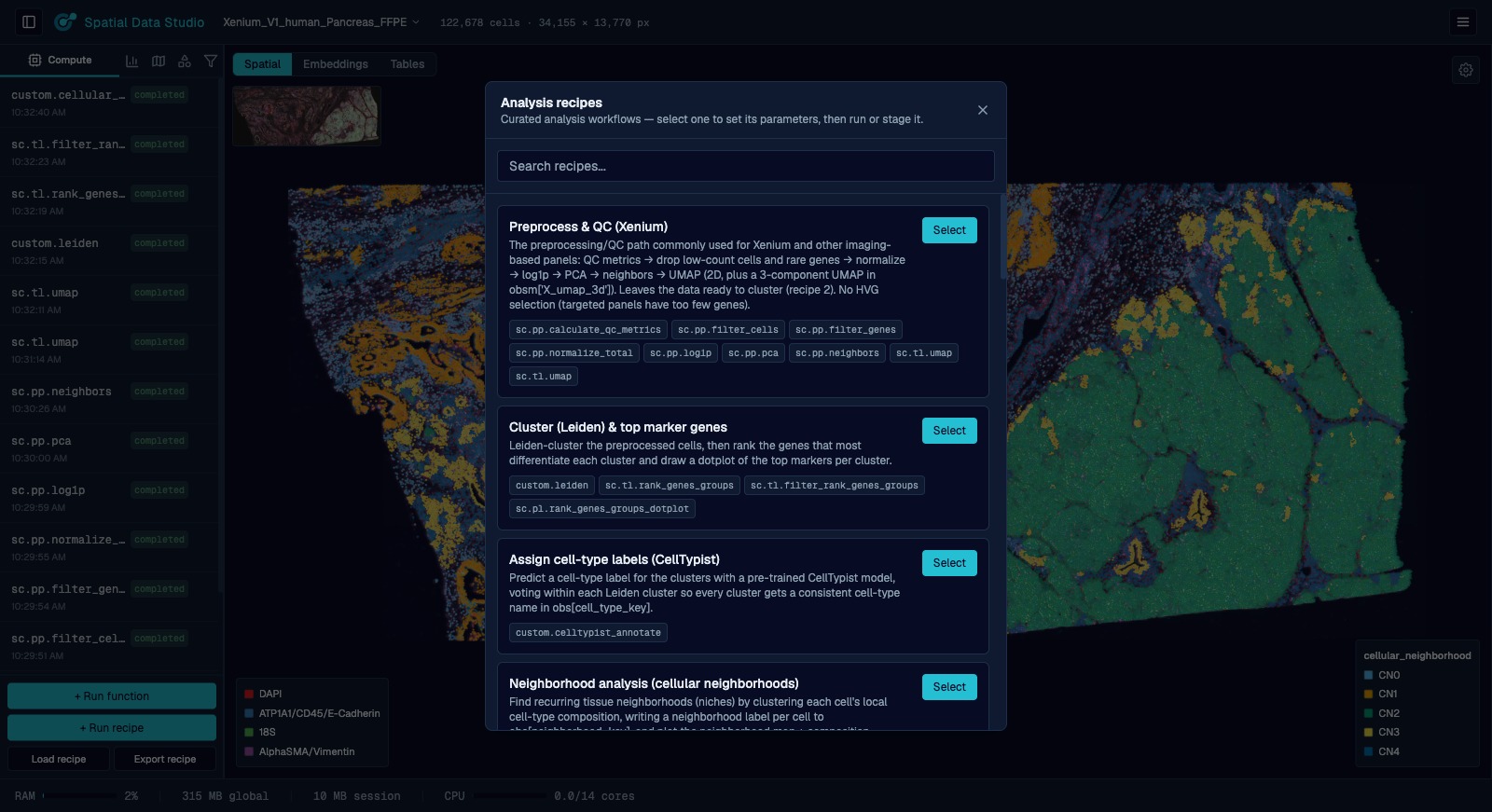 |
| Run a function. Each operation opens with its provenance and a form built from the function's parameters. | Apply a recipe. Curated workflows run every step in order, or stage them for editing. |
Browse your figures
A Plots view sits next to Spatial and Embeddings as a grid of every figure the session has drawn; click one to fill the screen with it and step through the rest with the arrow keys. Any figure downloads as SVG, PDF or PNG.
Visualize interactively
Color cells by any gene or metadata column, choose which tissue-image channels to display (up to 6 at once) and how they're named, colored (any color, not just presets), and contrast-adjusted (min/max per channel), switch between point and cell-boundary rendering, and view non-spatial embeddings (UMAP/PCA) in 2D or 3D — all on the same GPU canvas. A minimap in the canvas' top-left corner shows the whole section with a box marking the part you're looking at; click or drag it to jump somewhere else.
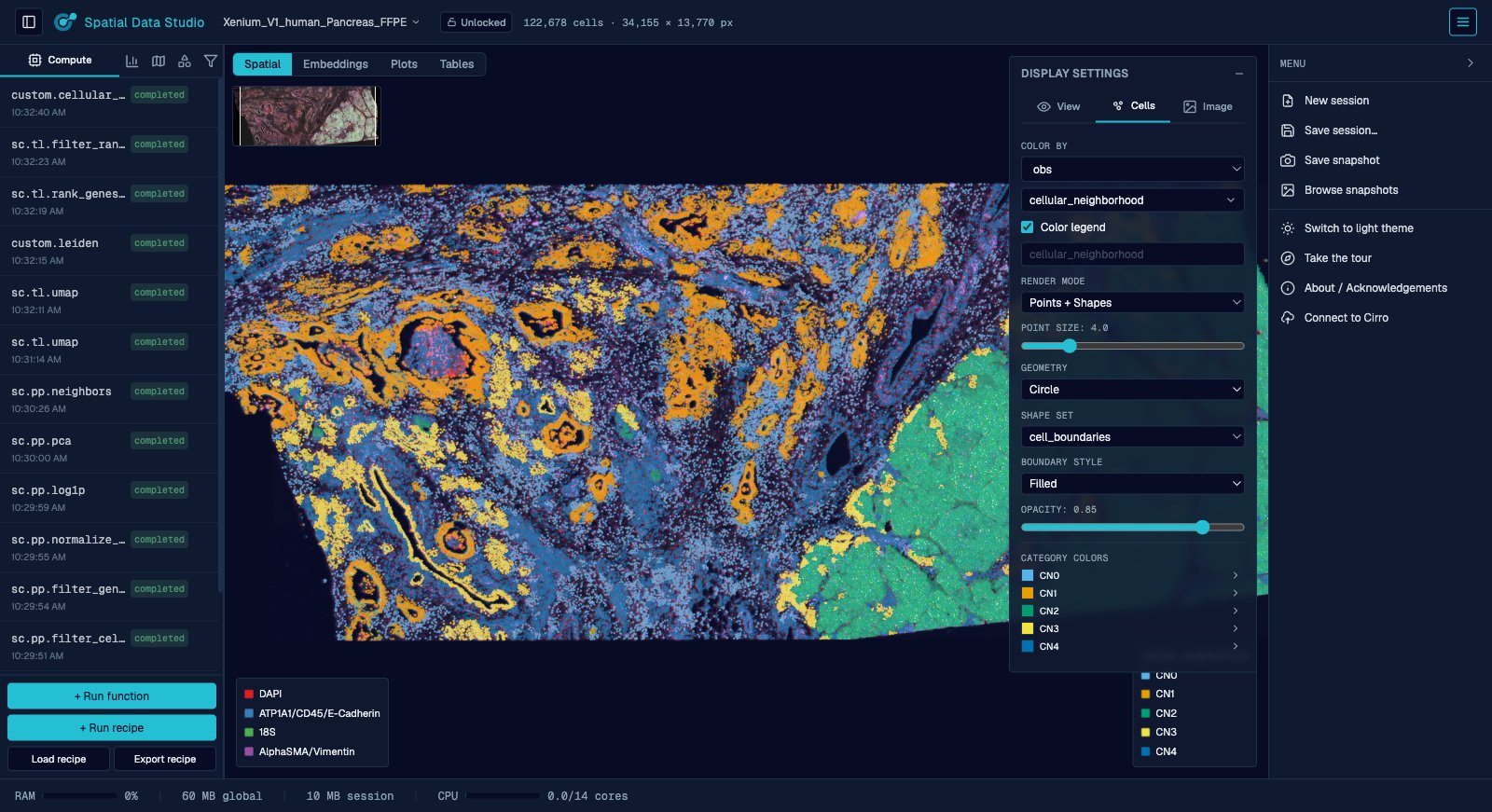
Customize the display, organised into View, Cells, and Image icon tabs — choose what colors the cells (first on the Cells tab), how they render, how the plot is oriented (flip the horizontal/vertical axes), the zoom level (buttons plus scroll/pinch), whether the minimap is shown, the plot's own light/dark backdrop (on the Image tab, set per plot and independent of the app theme), and how each tissue-image channel is colored and contrast-adjusted. A dataset that carries more than one image (say an H&E next to a morphology stain) picks which one is drawn under the cells at the top of the Image tab, or None for no image at all; each image brings its own channels. When cells are colored by a categorical value, each group's color can be overridden individually (and reset to the default palette) at the bottom of the Cells tab, and the legend on the canvas lists every group, in columns when there are many. (Text and shape annotations that persist with the dataset are drawn from the left panel's Annotations tab.)
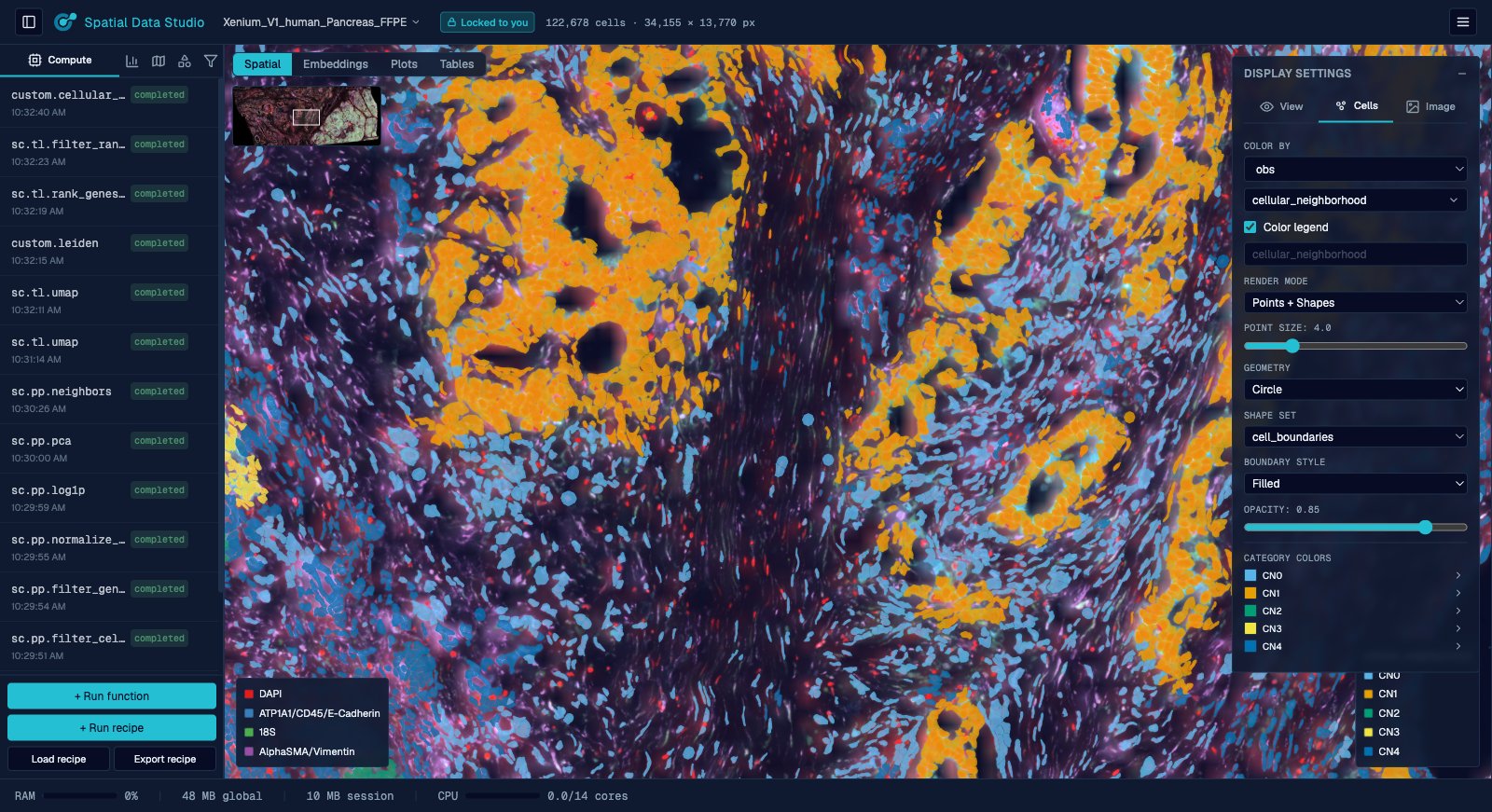
Switch to cell-boundary rendering to draw each cell as its actual segmentation shape rather than a point — pick the shape set (here cell_boundaries) and choose whether each boundary is a filled shape or an outline (with an adjustable line width), colored by the cell's value either way.
Annotate
Select groups of cells to label them, or draw shapes and text directly on the tissue. Region labels become ordinary metadata columns you can then analyze by. Applying a label recolors the view by that region set and paints the labelled cells in the color you picked; the draw color then advances to the next preset for the next group. Labeling works on the embedding view too — in 3D it labels every cell visible within the drawn region.
Select cells
Both the Regions and Subset tabs pick their cells the same way, with a tool you choose at the top of the panel:
- Lasso — click point after point on the canvas to trace any outline you like, then Finish region to close it.
- Circle, Ellipse, Square, Rectangle — drag once on the canvas and the shape appears where you dragged. Then adjust it: drag the shape itself to move it, and its side handles to resize — a circle and a square keep their aspect, so they get one handle driving both. Everything except the circle also gets a green handle on an arm that rotates it. The cell count on the action button follows each adjustment.
A selection can combine areas: Finish region banks the shape (or the closed lasso ring) and frees the canvas for the next one, and the action applies to all of them together. Clear discards the lot.
Subset
Select a region — on the tissue or an embedding — to spin off a child session that keeps (or removes) just those cells.
Analyses available
The gallery leads with a guided Xenium region-analysis workflow you run in order: preprocess & QC → Leiden cluster & top marker genes → assign cell-type labels (CellTypist) → neighborhood analysis (cellular neighborhoods) → cell types & neighborhoods by region → region gene-expression differences.
Beyond that you get the full squidpy spatial toolkit (neighborhood enrichment, Moran's I / Geary's C spatially variable genes, co-occurrence, Ripley's statistics, ligand-receptor interactions), scanpy preprocessing and clustering, and a set of spatial / multi-sample methods that scanpy and squidpy don't provide out of the box: cellular neighborhoods, Milo differential abundance, LISI integration diagnostics, proximity/avoidance testing, region-boundary infiltration profiles, pseudobulk differential expression (DESeq2), and region feature differences (Kruskal-Wallis). Each is described in Analysis methods.
Save checkpoints and snapshots
Save a checkpoint you can reopen later — naming the session, picking the folder the file goes in (a new one is created for you) and the filename it's written under, then choosing what goes into the file from a checklist of the dataset's elements and the figures you've drawn, each with its size, so you can leave a multi-gigabyte tissue image out of a copy you want to send someone. The name travels inside the file, so reopening it shows the name you gave the session however the file itself is named. An image you do keep has a resolution slider: it lists what each level of the image pyramid costs, and you pick the most detailed one worth keeping, trading zoomed-in detail for a much smaller file (the session on screen keeps everything either way). A table you keep breaks out the same way, into its parts — the gene-expression matrix, the cell and gene tables, each embedding, layer and neighbor graph — each with its own size and its own checkbox, so an analysis whose findings live in the annotations can be shared without the expression matrix that dwarfs them. Such a file keeps everything else and stays fully readable; it just has no gene expression to color by, and the app says so instead of showing you zeros. Reopening a checkpoint brings its plots back as pictures, not just as a list of what was run.
Save a snapshot — a high-quality figure of the current view exported as a vector PDF and/or raster PNG, framed and sized in a dialog with a live preview, optionally with the minimap inset included in the figure. Saved snapshots are collected in a gallery you can browse, download, or delete; each file embeds the provenance (view, settings, and the analysis steps that produced the data).
A saved checkpoint also opens in the viewer, with no Analysis Workspace running: Share and embed the viewer.
Publish to Cirro
You can publish saved checkpoints to Cirro from the menu in the right-hand sidebar. Each person signs in with their own Cirro account, so several people can use the same running app without sharing credentials — the server holds no Cirro credential and needs no Cirro configuration. Setting CIRRO_BASE_URL on the deployment only prefills a domain other than app.cirro.bio.
- Connect to Cirro asks for your Cirro domain (for example
app.cirro.bio) and gives you a login link. Open it, sign in as you normally would, and the dialog updates itself when you're done — closing it won't cancel the login. Everything else about your account is discovered from the domain. A login link is only good for about half an hour; come back to a stale one and the dialog says so and offers Refresh login token, which gets you a fresh link for the same account. - The menu entry then reads Upload to Cirro and shows which account you're signed in as. Disconnect from Cirro signs you out of this browser.
- The upload dialog asks for a project, a dataset name, an optional description and destination folder, and which saved sessions to include. Uploading runs in the background — you can keep working, and the sidebar shows progress.
The upload becomes a new dataset in the project, which the web app's map shows as spatial data. Alongside your checkpoints, it includes the viewer itself (index.html) and an index.json listing them, so the dataset also opens in Cirro as a browsable collection that anyone with access can view. (Uploads made from a development server, which has no built viewer on disk, carry the checkpoints and index.json only; the dialog tells you which kind of upload you're making.)
Your Cirro sign-in lives only in the running app's memory and is dropped after 8 hours of inactivity or when you disconnect.